
Most agents do not have a commission problem. They have a visibility problem. Carrier reports show what you got paid. KundPro shows what you were supposed to get paid — and whether anything is missing.
What Commission Tracking Is
Commission tracking in KundPro is a checkbook-style ledger for your book of business. It shows how many commission entries you have, your expected commissions, commissions received, and missed commissions.
The important difference is that commissions do not start in the ledger. They start at the policy level. When you record a policy or a new sale in the CRM, that is where you enter the commission information that later appears in the ledger.
How Medicare Agents Track Commissions
Medicare agents track commissions by recording the expected commission and payment date when a policy is written, then comparing that expected amount to the actual payment received from the carrier. Each policy is tracked individually, creating a line-by-line ledger where discrepancies can be identified and corrected.
Step-by-Step Setup
Go to the client record
Commission tracking starts inside the client module. Go to Clients, select an existing client, or create a new client if needed.
Open the policy tab
Once the client record is created, click the Policies tab inside the client module. Click + Add Policy to create a new policy, or click Edit on an existing policy to update it.
Enter policy information
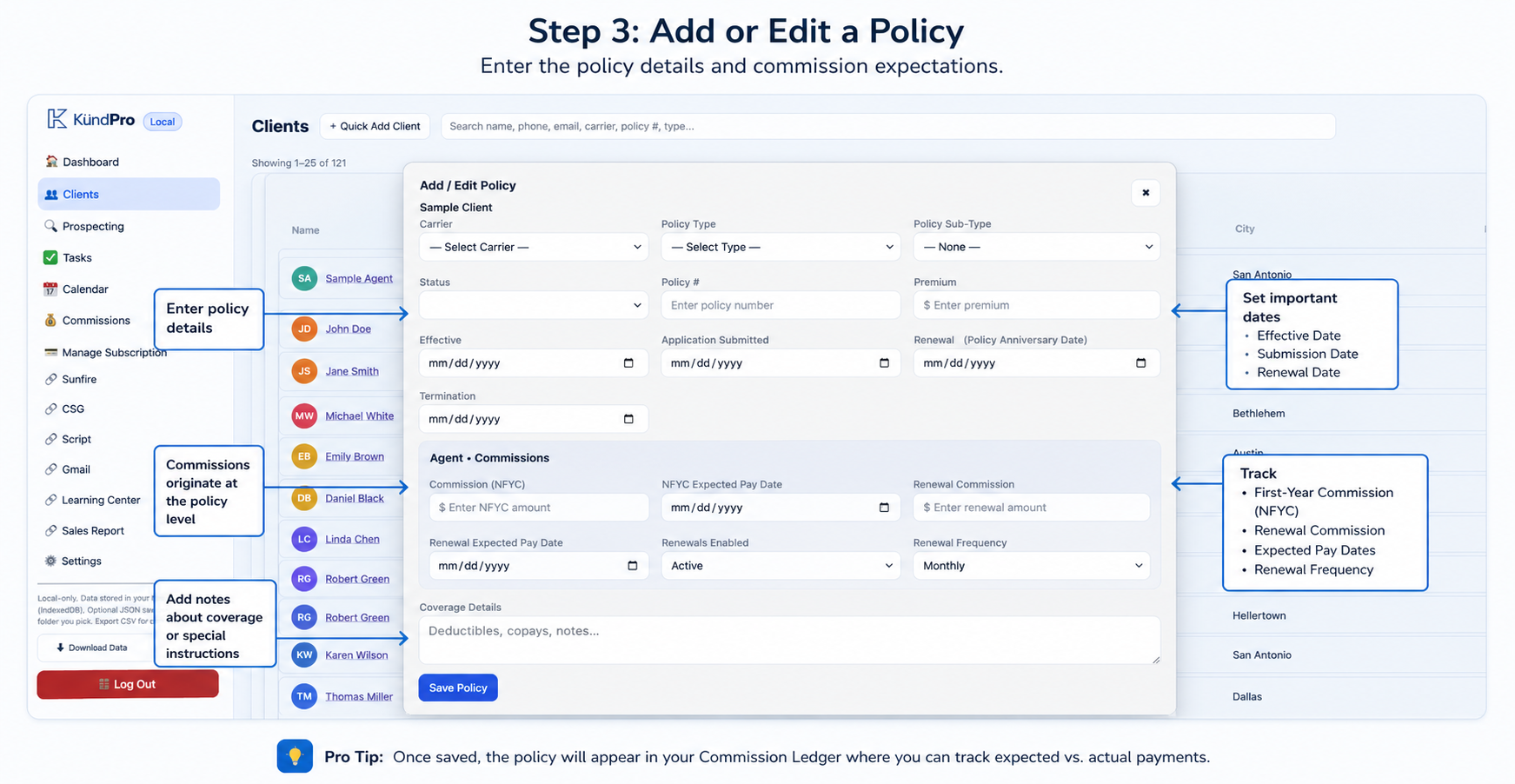
Fill in the policy details: carrier, policy type, subtype, policy status, policy number, premium, effective date, submission date, and renewal date.
Enter NFYC commission
In the Agent — Commissions section, enter the Commission NFYC amount. NFYC means Net First Year Commission. This is your first-year commission and is normally a one-time commission.
Then enter the NFYC expected pay date. This is when you expect to be paid based on your carrier, FMO, or upline payment cycle.
Set renewal commissions
In the renewal commission fields, enter how much you expect your renewal commission to be. Then enter the first renewal expected pay date.
Next, select whether renewals are active or inactive, then choose how often you receive renewal commissions — such as monthly, quarterly, or annually.
Save the policy
Click Save Policy. Once the policy is saved, it appears in your commission ledger automatically.
Understanding the Ledger
The commission ledger is sorted by month and works like a bank statement for your policies and commissions. It gives you a clear view of expected commission, commission received, and missed commissions.
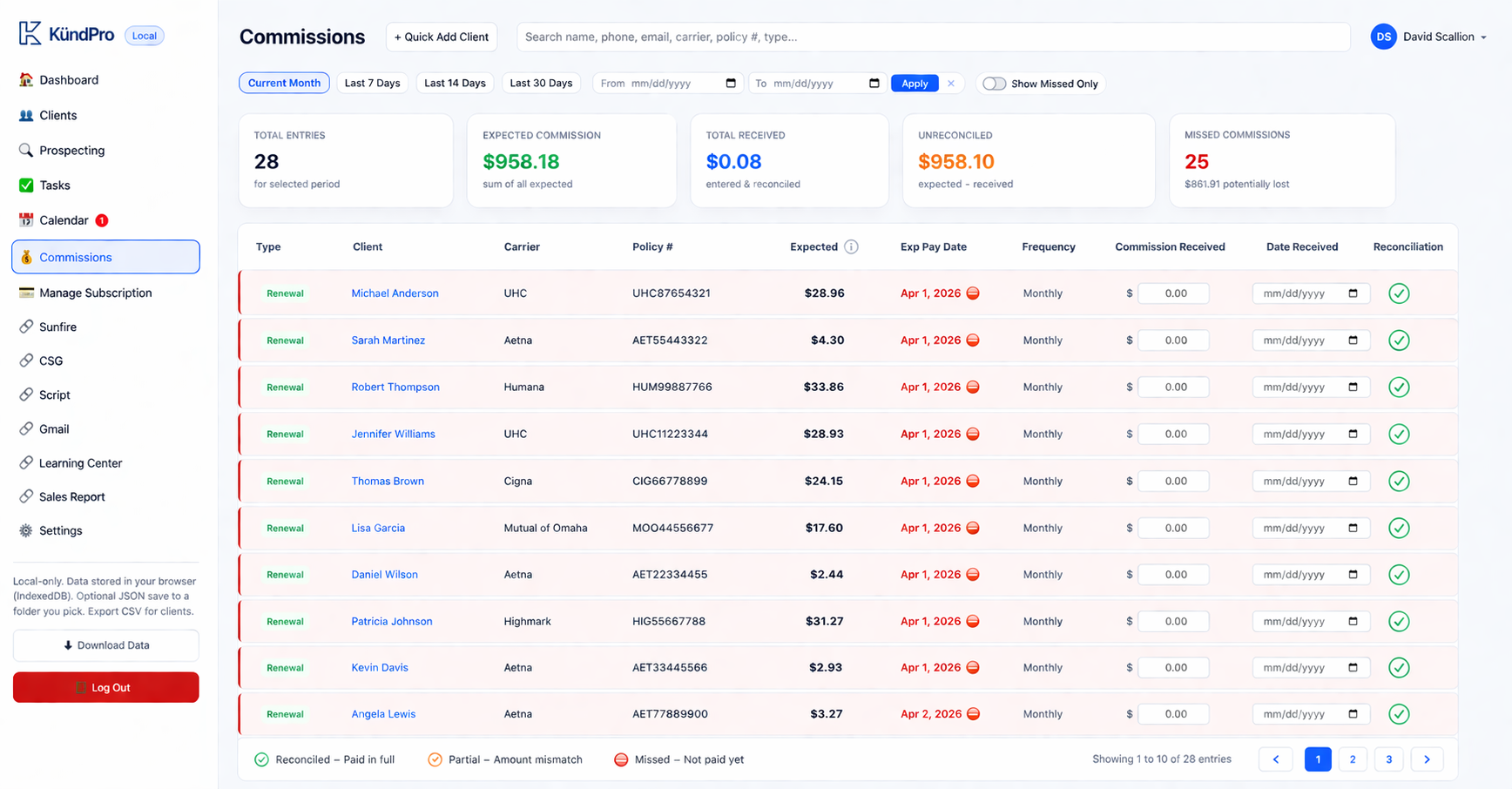
This is how Medicare agents track commissions without spreadsheets — by comparing expected commission amounts to actual carrier payments inside a CRM.
You can sort by date, current month, last 7 days, last 14 days, last 30 days, or custom date range. You can also filter to show only missed commissions, making it easy to identify what is missing.
What the ledger shows
The ledger shows policy type, client name, carrier, policy number, expected commission, expected pay date, payment frequency, actual amount received, received date, and reconciliation status.
How to Reconcile
When you receive a check or payment from a carrier with a commission breakdown, find the matching entry in the ledger.
- Enter the actual amount you received.
- Enter the date you received the payment.
- Compare the actual amount to what you expected.
- If the amount is correct, click the checkmark to lock it in.
If the number does not match what you expected, that is the signal to check why. It may be a carrier error, an incorrect commission rate, an overestimate, or money you are still owed.
How to Find Missed Commissions
Use the Show Missed Only filter to find commissions that were expected but not received. This lets you quickly identify late payments, missing carrier payments, and entries that need follow-up.
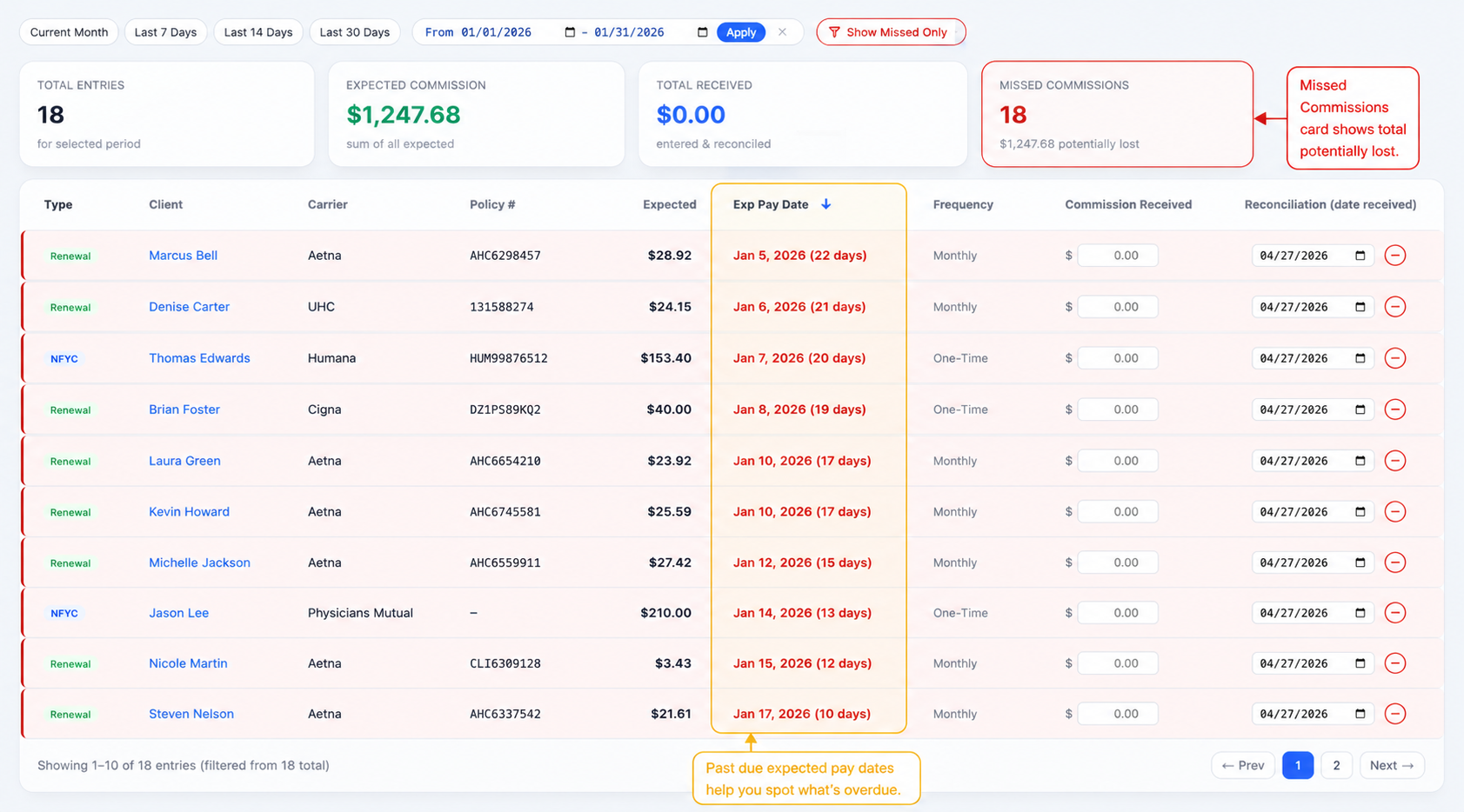
This is how Medicare agents identify missed commission payments without relying on carrier reports or spreadsheets — by tracking expected pay dates and comparing them to actual payments inside a CRM.
This is one of the most important parts of the system because it helps you see what you are owed before it gets buried in carrier reports or forgotten in a spreadsheet.
What makes this different from spreadsheets
Most agents still use Excel or Google Sheets for commission tracking. The problem is spreadsheets only track what you enter manually — not what was expected from each policy.
KundPro connects commission tracking directly to the policy, allowing agents to reconcile expected vs actual payments automatically without relying on a separate spreadsheet.
Why This Replaces Spreadsheets
Most insurance commission tracking software relies on carrier reports alone — meaning you only see what was paid, not what should have been paid.
KundPro works differently because expected commissions start at the policy level. The ledger then lets you balance expected versus actual payments the same way you would balance a checkbook.
If you are still using Excel or Google Sheets to track policy commissions, read this breakdown on why Medicare agents still use spreadsheets and what is actually missing from most CRM systems.
Commission tracking in KundPro turns into a checkbook you can balance — per policy, per carrier.
Frequently Asked Questions
What is commission tracking in KundPro?
Commission tracking in KundPro is a policy-level ledger that shows expected commissions, actual payments received, and missed commissions across your book of business.
Where do commissions start in KundPro?
Commissions start on the policy record inside the client module. When you enter policy and commission information, that data feeds the commission ledger.
What is NFYC?
NFYC means Net First Year Commission. It is the first-year commission you expect to receive on a newly written policy.
Can KundPro track renewal commissions?
Yes. KundPro tracks both NFYC and renewal commissions using expected pay dates, payment frequency, and reconciliation status.
How do I know if a commission is missing?
Use the Show Missed Only filter in the commission ledger. It displays entries where a commission was expected but has not yet been received and reconciled.
Stop Guessing Your Commissions
KundPro CRM + AMS gives Medicare agents policy-level visibility into expected commissions, actual payments, and missed income.
Apply for Beta Access →No credit card required · Free during beta · Medicare agents only